The Other Commands
Beyond putting a program into a run, a mission can change the session's settings part-way through, steer the optimizer, write out what the run produced, and drive the session from a script.
Where they are
The Execution page's Mission branch of the Control Tree, all from the same Add Command — the + on the Mission row or on a List row. The Program category's other two commands are on Playing a Program, and the Flow category's one command is on Building a Mission.
Settings, one per command
The Setup category holds five commands, each carrying one setting:
| Command | What it sets | Default |
|---|---|---|
| Machining Resolution | the meshing resolution of material removal, in mm | 0.125 mm |
| Machining Motion Resolution | how a motion is sampled into steps | Feed Per Cycle |
| Collision Detection | whether collisions are detected | on |
| Pause on Failure | whether the run stops at a failure | off |
| Physics | whether physics is simulated | on, where the advanced-physics licence is held |
Each takes effect from its own position in the list onward. A program above one plays under whatever was in force before it; programs below it play under the new value, until something further down changes the session again.
That is the reason these are commands rather than project-wide settings, and it is worth using: put a coarse machining resolution above the roughing programs and a fine one above the finishing programs, and one run does both at the resolution each deserves.
Four of the five are a single field or checkbox. Machining Motion Resolution has more to say and carries its own editor: a type — Feed Per Cycle, Feed Per Tooth or Fixed — and, for Fixed, a linear resolution in mm and a rotary one in degrees.
Note
General Config is not on the menu, and it is not missing. It was one command carrying all five of these settings at once, and the five above replace it. A project that still stores one loads as those five commands in its place, and saving from then on writes the five. Where the bundle named a meshed geometry file or had reading one switched on, a Record Meshed Geometry command set to Read precedes them — ticked only where reading was switched on. There is nothing to add and nothing to look for.
The optimizer, as a step
NC Optimization Config is the Optimization category's one command, and it exists so the optimizer's settings sit at a point in the run rather than over all of it. Everything played below it optimizes under those values, and a second one further down re-points them mid-mission.
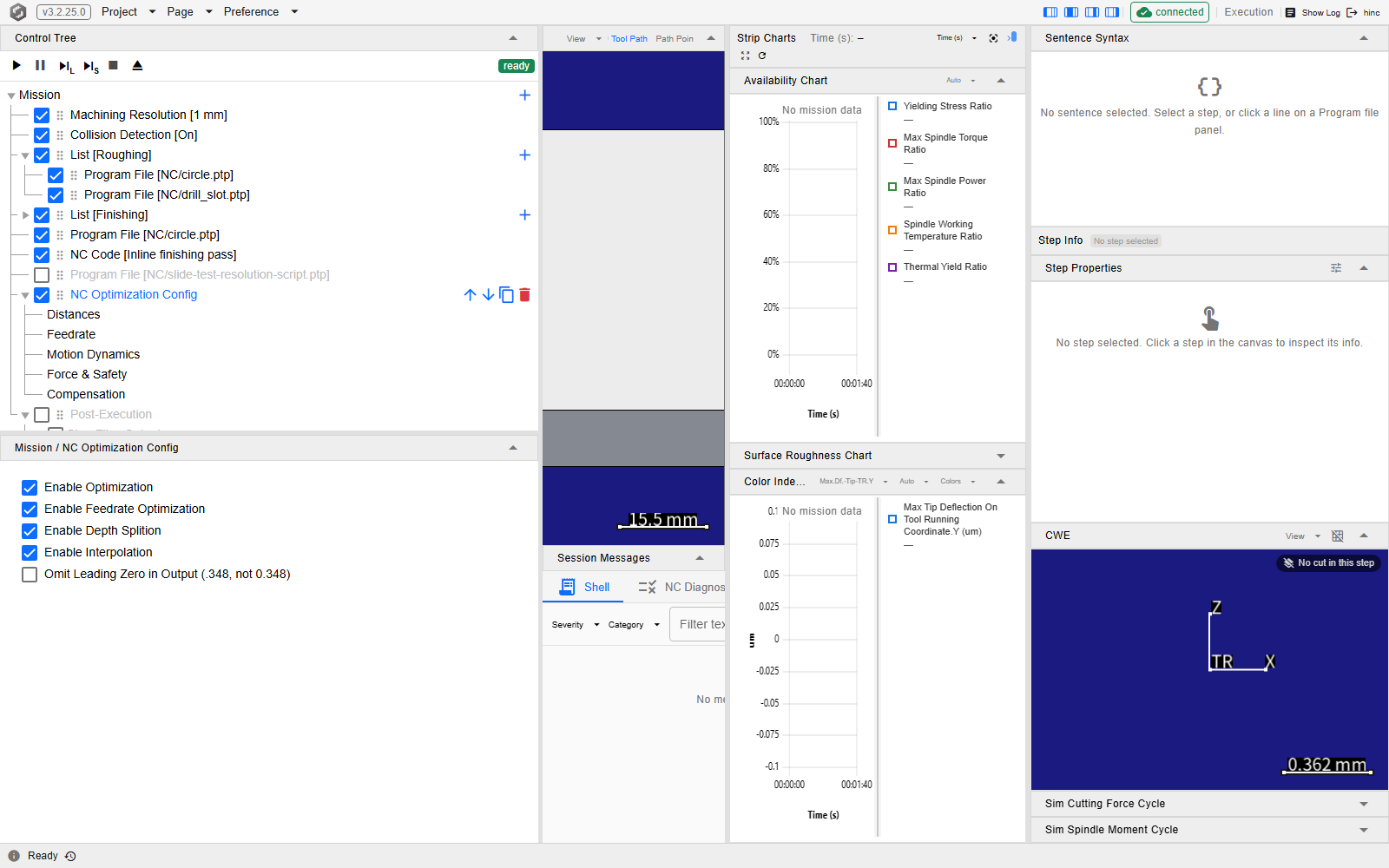
Its own node carries five switches. The fifth, Omit Leading Zero in Output (.348, not 0.348), only formats the numbers written out; the other four steer the optimizer — Enable Optimization, Enable Feedrate Optimization, Enable Depth Splition and Enable Interpolation — and the values live on five child nodes beneath it:
| Child node | What is on it |
|---|---|
| Distances | the extended pre- and post-distances, in mm |
| Feedrate | the feedrate floor and ceiling, the rapid feed, the feed-per-tooth bounds and the assignment ratio |
| Motion Dynamics | maximum acceleration and jerk |
| Force & Safety | the preferred cutting force and the yielding, thermal-yield, spindle-torque and spindle-power safety factors |
| Compensation | the forward, side and depth compensation switches |
None of the five child nodes carries a checkbox of its own. The command's own checkbox is the only one, and like every command's it decides whether the mission runs this command — not whether the optimizer is on, which is the first switch on its panel.
The command takes no title: its row always reads NC Optimization Config. What each quantity means, and why an optimized result can look wrong, is NC Optimization.
The demo mission's optimizer command, at /execution?tree=execution/mission/7. In this mission it
sits below both List groups and the three loose entries after them rather than above them, so
the ordering rule at the top of this section is what decides how much of the run it reaches. The
five switches are on the command's own panel below the tree, headed Mission / NC Optimization
Config; the five value nodes are indented under it in the tree. Because the row is selected, its
move, duplicate and delete buttons show at its right edge.
Writing out what the run produced
The Output category holds three commands: Post-Execution, Record Meshed Geometry and Export Meshed Geometry (STL).
Post-Execution's name says what it consumes, not where it goes. It is an ordinary entry in the list, not an end-of-run hook, and everything it writes is derived from what the session has played above it. Put it after two programs and it covers both; put a second one halfway down the list and it writes an interim snapshot of the same accumulating run. Its placement is the whole question.
Five outputs hang off it, each a child node whose own checkbox switches that output on:
| Output | What it writes | Default template |
|---|---|---|
| Step Files Output | the step-series data of what has played | Output/[NcName].step.csv |
| Shot Files Output | time-sampled series at a period you set | Output/[NcName].shot.csv |
| Optimization Output | the optimized programs | Output/Opt-[NcName] |
| CL → NC Writeback | Fanuc NC re-synthesized from what was played | Output/[NcName].nc |
| Geometry Difference Detection | a comparison of the workpiece geometry at a radius you set | — |
[NcName] in a template is replaced by the source program's name.
Three things to know before switching them on:
- Two of the five are visible only while Show Physics Options is on in the Preference menu — Shot Files Output and Optimization Output. See Preferences.
- The shot file's time resolution is a sampling period, not the machining resolution, and it sets the accuracy ceiling of that data. A fine period makes a large file: a six-cut program writes about 13 MB at the default 1 ms and about 128 MB at 0.1 ms.
- The CL → NC writeback needs the CL played on an XYZABC chain, so the Program File command that plays it goes above this command. It re-serializes every control file the session played, so an NC play is written back too, and the converted files appear on the Program branch as their own nodes — see The Program Branch.
Every field stays editable whether or not its checkbox is ticked: the checkbox decides what runs, not what can be prepared. The outputs are written in an order of the command's own — shot files, step files, optimization, the writeback, then the geometry difference — which is not the order the tree lists them in, and which matters only if you are reading their timestamps.
The demo mission's Post-Execution command with Step Files Output selected, at
/execution?tree=execution/mission/8/step-files. Each output is a child node with its own
checkbox — that tick is what switches the output on — and the template field for the selected one
sits in the panel below, headed Mission / Post-Execution / Step Files Output. In the demo the
Post-Execution row itself is greyed with its checkbox cleared, and its outputs stay editable
all the same; the row is the last one the tree pane shows in full here, its child nodes cut off at
the pane's edge with only the top sliver of the first showing.
![The Control Tree on the Execution page, with the six transport buttons and a green ready badge above the tree and the Mission root row carrying a + at its right edge; the command rows run down to a greyed Post-Execution row with its checkbox cleared at the bottom edge of the tree pane, only the top sliver of its first child row showing before the pane's edge cuts it off; the panel under the tree is headed Mission / Post-Execution / Step Files Output and holds one Step File Template field reading Output/[NcName].step.csv](the-other-commands-img/post-execution.en.png)
Keeping the workpiece between runs
The Output category's other two commands both take the workpiece as it stands at their own point in the list. Record Meshed Geometry stores it in the application's mesh format so a later run can pick it back up; Export Meshed Geometry (STL) writes an STL for something outside the application to read.
Record Meshed Geometry carries a path — Cache/Workpiece.wct by default, because a recorded mesh is
a rebuildable by-product of a run rather than a project asset — and one of four actions:
| Action | What it does |
|---|---|
| No Action | nothing; the entry is a placeholder |
| Read | always loads the file into the session |
| Write | always writes the session's geometry to the file |
| Read On First Or Write | reads the file if it exists and nothing has played yet this session; otherwise writes |
The condition on the fourth is what makes the command usable more than once in one mission: the first such entry reads, and every one below a program writes. Building a mission around that is A Mission That Resumes.
Writing builds the mesh, at the resolution in force where the command sits — so a Machining Resolution command belongs above it. A missing file is not an error: writing it is what a run does. Reset on the command's panel deletes the file it points at, so the next run records afresh.
Export Meshed Geometry (STL) takes a path — Output/MeshedGeom.stl by default, since an export is
something you asked for rather than a cache — and a resolution in millimetres for the triangles it
writes; 0 uses the display mesh resolution. What it triangulates is the same mesh Record Meshed
Geometry writes, built the same way, so the placement rule above applies to it too: the STL
resolution decides how finely that mesh is tessellated, not how finely it was cut.
Driving the session from a script
Script is the Program category's third command: C# evaluated against the running session, for anything the other command kinds do not cover. Where the script returns a sequence of actions, that sequence is played as part of the run.
The editor completes against the very API the run will compile the script with, so what it offers is what the run accepts, and a member's signature and summary show beside the suggestion. Picking a method inserts the call with each argument as a stop, so Tab walks the parameters.
There is no Save button. Typing saves shortly after you stop, and the pill beside the title reports where the text is: Idle, Dirty, Staging…, Staged, or Error with the reason in its tooltip. Staged means the service is holding the script, not that the project has been saved — save the project to keep it.
Two prompts guard the edges, and neither is a yes/no question, so each has three buttons:
- Unsaved Changes, when the script still has unsaved edits and you select another node, or move, duplicate, delete or add a command from the tree rows — a save already on its way is let land first, and the prompt appears only for what is still unsaved after it. Save & switch saves and then proceeds, and only once the save has landed; Discard drops the edits; Cancel leaves the selection where it is, and a cancelled row operation is dropped with a notice that the editor keeps its unsaved edits.
- Script changed elsewhere, when the command changed underneath you — another tab, or a project reload. Discard & reload takes the server's copy, Force overwrite writes yours over it, Cancel keeps your edits in the editor, unsaved, and the server's copy as it is.
Like NC Code, the title is optional and is what the row brackets.
The list is not closed
What Add Command offers is whatever the application knows about, not a menu built into the interface. A kind with no editor of its own is served by a generic one built from the settings that kind declares — which is how Machining Resolution, Collision Detection, Pause on Failure and Physics are edited. So a command kind can be addable, and fully editable, before this manual has a page for it.
See Also
- Running a Simulation — the rest of running a job
- Building a Mission — the list these commands go into
- A Mission That Resumes — the layout these commands fall into, and what it buys
- Playing a Program — the two commands that put NC code into a run
- PreSettingCommand Panel — the component behind General Config, and what a stored bundle expands into
- NC Optimization Option Panel — the component behind NC Optimization Config, field by field
- PostExecutionCommand Panel — the component behind Post-Execution: its five sections and what each writes
- Script Command Panel — the component behind Script: its editor, its completion and its save states