Starting and Stepping
Six buttons and four keys drive a run. What each of them does is short to say; which of them you can press at a given moment is the part worth learning, because the availability of a button is what tells you where the run actually is.
Where it is
The Execution page at /execution. The transport sits in the run header at the top of the Control
Tree pane in the left dock, above the Mission and Program roots, with the run-state badge at
its right end. It is there whatever the tree has selected — so it stays reachable while you are
editing a Mission command — and its keys keep working while the Control Tree row is collapsed. There
is exactly one of it on the page, and it is the thing that binds F5 to F8.
The six controls
| Control | Key | What it does |
|---|---|---|
| Start / Resume | F5 | Starts the run, or resumes a paused one |
| Pause | F6 | Holds the run where it is |
| Run one NC line | F7 | Advances by one line of the program |
| Run one machining step | F8 | Advances by one machining step |
| Stop | — | Ends the run |
| Reset | — | Unwinds the session back to the start |
Start and Resume are the same button, not two: it reads Start from the beginning and Resume once the run is paused. The two single-advance buttons share one icon and are told apart by a small letter in the corner — L for a line, S for a step. Stop and Reset carry no key.
Reset unwinds in the background: the button shows a spinner while it works and the rest of the application stays usable.
One line is not one step
The two single-advance buttons exist because the two units do not line up. One line of program can produce many machining steps — a long move at a fine machining resolution is dozens of them — while another line produces none at all, because a tool change or a coordinate selection is a sentence with no motion under it. So advancing by one line and advancing by one step land in different places.
Use Run one NC line when you are following the program: it stops where the next line begins, which is where the program text you are reading changes. Use Run one machining step when you are following the cut: it stops at the next thing the machine did, which is the unit the Step Info column and the strip charts are keyed on. Stepping by step through a single long move is how you watch one cut develop; stepping by line skips straight past it.
What you can press, and when
The whole bar is dead until two things are true: a project is open, and the page's 3D canvas has connected to the service. The second one is easy to miss — the connection is what binds the run engine to this page, so a canvas that has dropped its connection leaves every transport button greyed even though the project is plainly loaded. The connection badge on the menu bar is where you check that.
With both in place, availability follows the run state:
| Control | Available while the run is |
|---|---|
| Start / Resume | ready, or paused |
| Pause | running |
| Run one NC line / Run one machining step | ready, or paused |
| Stop | running, paused, or finished |
| Reset | any time a project is open |
Nothing steps a moving run. Both single-advance buttons are unavailable while the run is going, so the way to step through something you are already watching is to pause first and then step. That is the single most useful thing in the table: the buttons are not refusing you, they are telling you the run has not stopped yet.
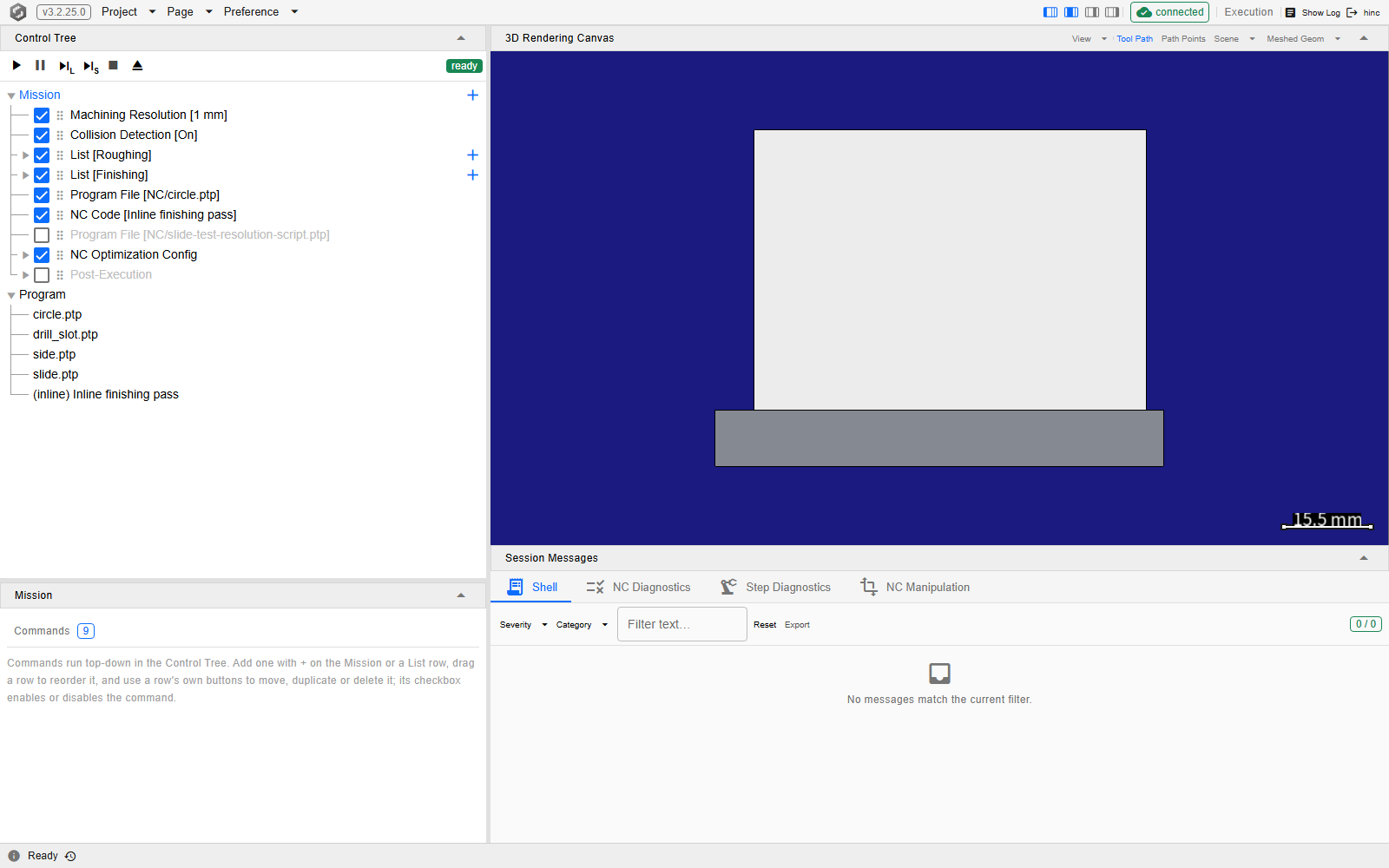
The bar at rest, with the demo project open and nothing run yet, at /execution. Start, the two
single-advance buttons and Reset are live; Pause and Stop are greyed, because there is no run to hold
or to end — and the two single-advance buttons carry the L and the S that tell them apart. The
badge at the right end of the run header reads ready, and the block on the canvas is uncut.
Reading the run state
The state sits at the right end of the run header, beside the transport, as a coloured badge — ready, running, paused, finished — pinned above the tree, so it stays in view however far you scroll the tree. When the left dock is narrowed the buttons scroll out of view before the badge does: the run state is the last thing a resize hides. The footer along the bottom of the window carries the session's own messages.
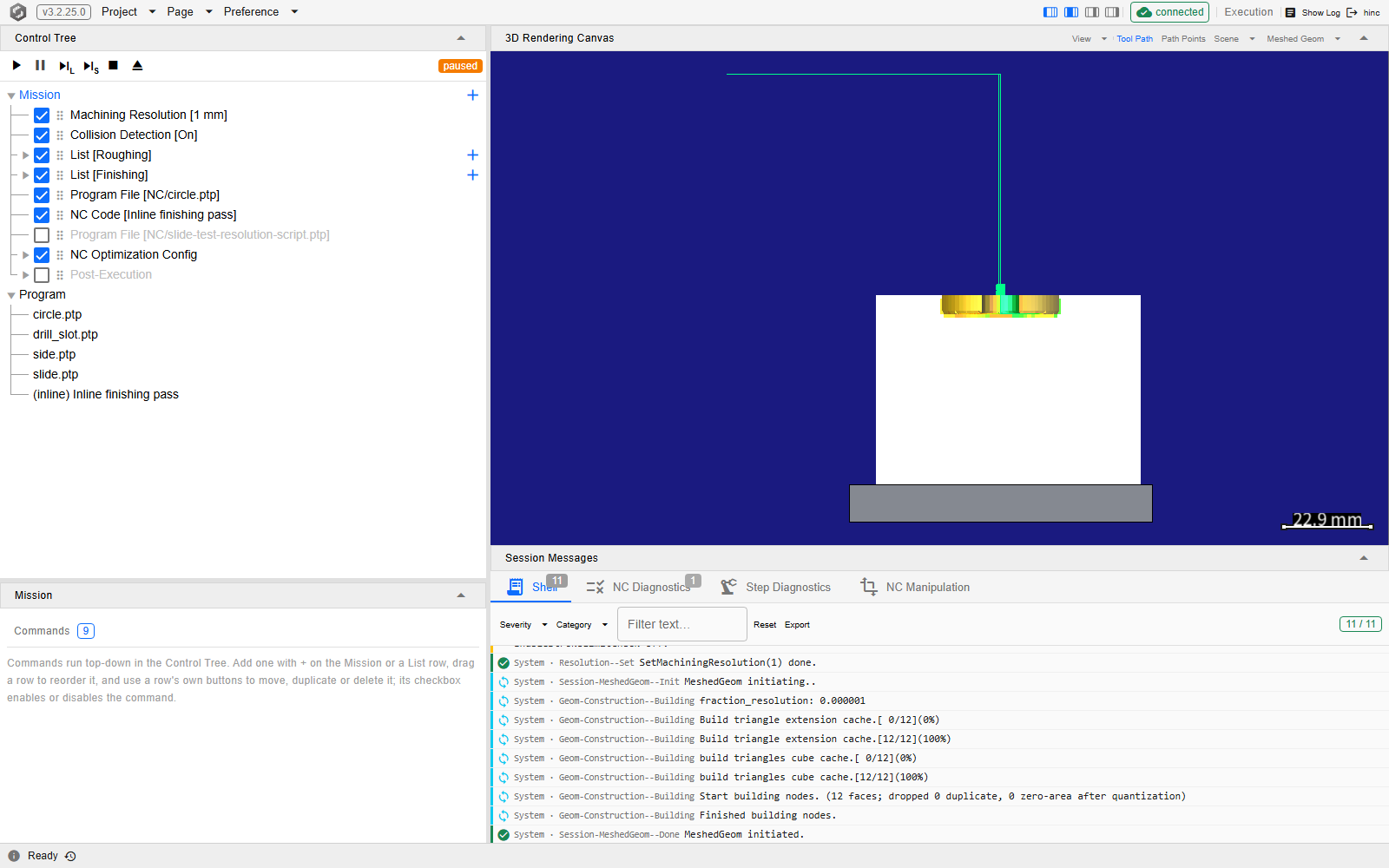
The same page with the mission paused part way through. The badge reads paused in orange, Pause is grey, and Stop has joined the live ones — so the bar alone tells you a run is open and held. On the canvas the tool path the run has laid down so far is now drawn over the block, and the tabs under it are counting what the run has reported: Shell is badged with the eleven messages the load and the run have written between them and NC Diagnostics with the one the parser raised, while Step Diagnostics and NC Manipulation carry no badge at all.
The keys, and where they stop
F5 to F8 are bound only while the Execution page is the one on screen. On every other page F5 is the browser's own reload, and the same is true here in two cases: when the button a key drives is unavailable at that moment, and when the focus is inside a text field.
Warning
That exception bites hardest on F5 during a run. Start is unavailable while the run is going, so the key falls through to the browser, the page reloads, and the session goes with it. Pause with F6 first.
See Also
- Running a Simulation — the rest of running a job
- Building a Mission — the command list this transport plays
- Watching the Run — the canvas and the charts that fill while this plays
- Inspecting a Step — the column that reads whichever step you stopped on
- When Something Goes Wrong — what to read when the run does not do what you expected
- The Application Window — the menu bar's connection badge, and the footer this page's state is reported in
- A Mission That Resumes — the shape a mission should have, and how it lets a stopped run restart
- Execution Tool Bar — the component behind these buttons: the enable rules, the status feed and the key bindings