Legacy Controller
The Legacy Controller screen owns three settings that have no editor anywhere else in the application. It edits a different controller model from the General Setup page's Controller branch, and neither screen sees the other's edits: those three are edited here, and everything else on the branch.
Where it is
Its own page, reached from the menu bar's Page → Legacy-Controller, at /controller/:tab?. It is
not a Control-Tree branch; nothing in a tree reaches it. The left pane is a strip of seven tabs, each
addressable as the last URL segment: Coordinate Table (coordinate-table, which a bare
/controller opens), Datum Preset, Datum Shift, Offset Table, Machine, Brand and
Config; the two datum tab buttons are shown only while the brand reads Heidenhain. The right pane
is a 3D view, described under What the right pane draws below.
Which face to edit
Controller setup for a project belongs on the General Setup page's Controller branch — Controller. The brand, the stroke limits, the rapid feedrate, the tool-change time, the tool offset table, the work coordinates and the Heidenhain datum tables all have an editor there as well, and apart from one shared project flag — Set ideal offset dependent on tool house, which this screen's Offset Table tab and the branch's Tool Offsets leaf both write — the two screens edit different models. A value changed on one is not the value the other shows.
Align program zero onto a work offset
Align P0 is on the Coordinate Table tab and nowhere else. The branch's Work Coordinates leaf carries P0 and M0 on every row too; the alignment is this screen's. Which direction an alignment runs — the work offset moved onto program zero, or program zero moved onto the offset as this button does — and where program zero sits on the workpiece in the first place, are both Program Zero Alignment.
- Find the row holding the work offset program zero should sit at. Ticking the table's selection column is not part of this — that only moves the viewer's coordinate marker onto the row, and that marker is not drawn until Show on Display in the tab's toolbar is on. It ships off, so on an untouched project the selection column appears to do nothing.
- Press Align P0 in that row. It does not write the coordinate — it moves the workpiece and fixture together so that program zero lands on the offset the row already holds. The toast names the translation it assigned. It needs a workpiece, a fixture and a machine tool on the project — Setup — and without them nothing is written and the button says so.
- Undo Align and Redo Align, in the tab's toolbar, step back and forward through the alignments this screen has recorded.
That history belongs to the screen rather than to the project: it holds 32 steps, survives a walk to another page and back, and is cleared when the project changes or the browser reloads the page. Each step restores the whole transform from a snapshot taken earlier, so if the fixture's placement was changed on another screen in between, an undo replaces that change rather than merging with it.
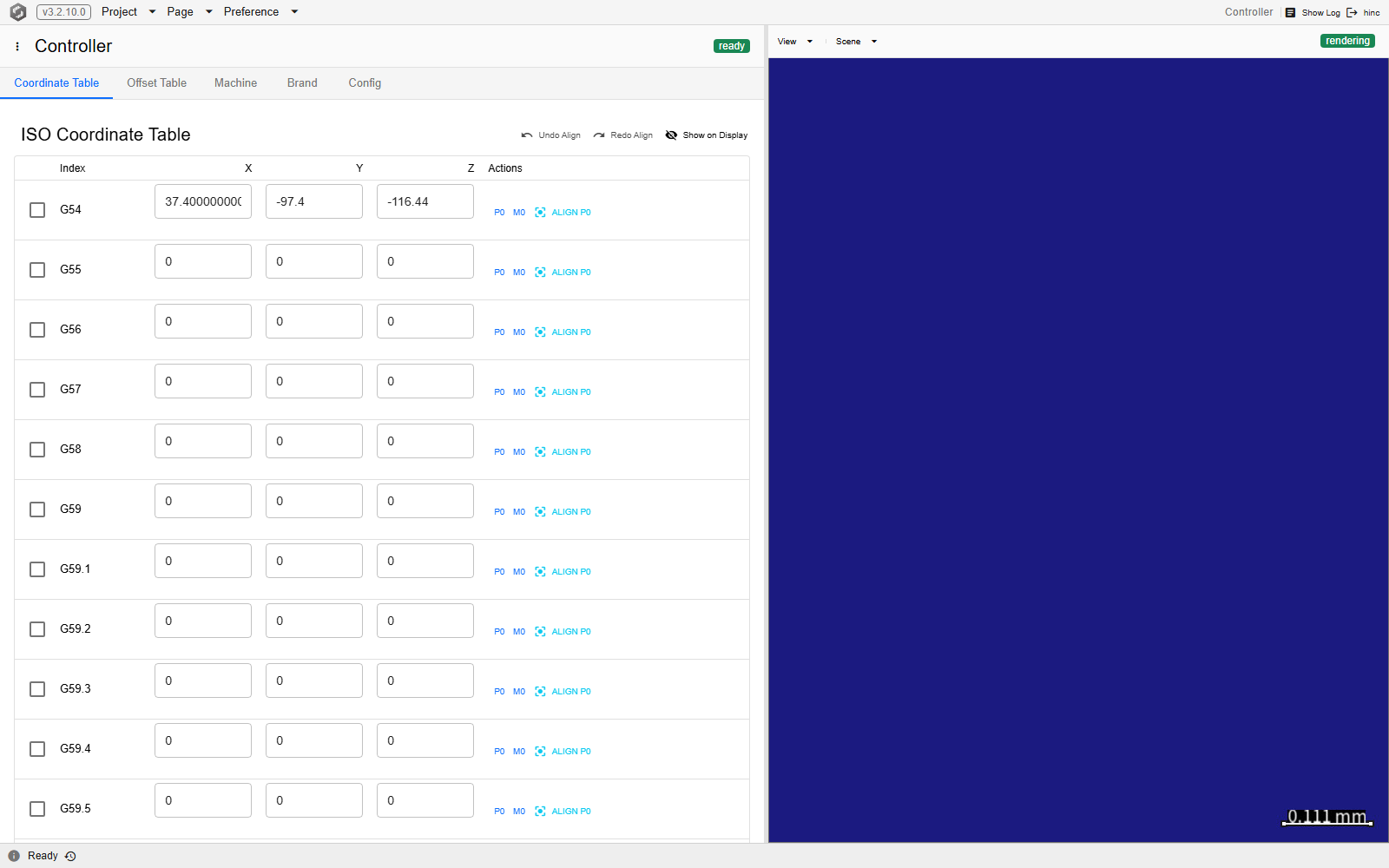
At /controller/coordinate-table. Align P0 is a row action — every offset from G54 to G59.9
has its own, and there is no single button for the table. The tab strip shows five buttons here
rather than seven because this project's brand is not Heidenhain; the two datum tabs appear only
under that brand, though their addresses stay valid under any of them.
The two switches nothing else carries
| Tab | Setting | What it is for |
|---|---|---|
| Config | Enable Shortest Rotary Path | Takes each rotary axis of a block to the equivalent angle nearest the previous block's, so an axis turns the short way round instead of unwinding a whole turn. It arrives on. Under Heidenhain the same normalisation runs whatever the box reads, so clearing it changes nothing there. |
| Brand | Master-axis character | Which rotary axis — A, B or C — the Heidenhain PLANE … SEQ orientations are resolved against; what that dialect's words do is NC Dialects. The card holding it is present only while the brand reads Heidenhain. |
Both commit on the click. If the master-axis write is refused a toast says so, but the select goes on
showing the character that was picked, so a reload is what shows which one actually took — and a
reloaded A settles nothing, because the Brand tab also falls back to A, silently, when the read
itself fails.
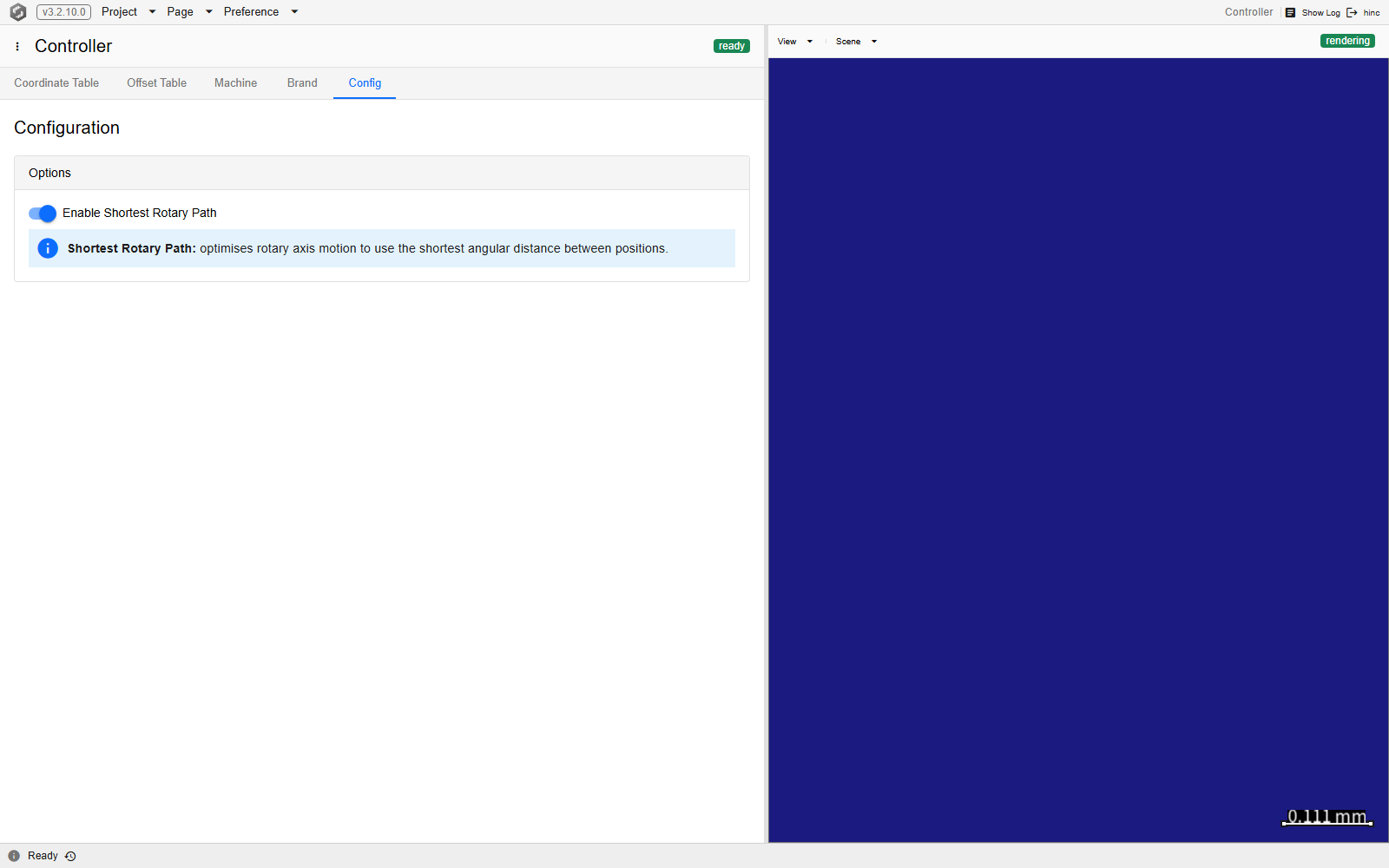
At /controller/config. The whole tab is that one switch. The master-axis select is not beside it
— it is on the Brand tab and, as the table above says, only while the brand reads Heidenhain,
which is why it is absent here.
What the right pane draws
The 3D view beside the tabs draws the same scene as the Execution page, and its Scene dropdown writes the same switches — so what is ticked here is ticked there. It offers three groups: the machine tool, the cutter, the workpiece and the fixture; the program-zero and work-offset markers, the Heidenhain one appearing only under that brand; and the dimension bar and colour scale bar. Of those, only the workpiece, the fixture and the dimension bar arrive on. The machine tool and the cutter arrive off, and so do the coordinate markers — the work-offset one is exactly what Show on Display turns on for this screen's table. A freshly loaded project therefore opens this pane with little or nothing in it, and that is the shipped state rather than a failure to draw.
See Also
- Utilities — the other screens the Page menu lists beside this one
- Mechanism Builder — another of the supporting screens the Page menu lists, for assembling a machine chain
- Controller — the branch that owns controller setup for a project, and every setting this screen does not exclusively hold
- Program Zero Alignment — which direction an alignment runs, where program zero sits on the workpiece, and why this screen's table is not the one a run reads
- Legacy Controller Page — the component behind this page: its seven tabs, how an edit commits, and its viewer